With the Stockpilot 1-Click module, you can print all shipping labels for your open orders with a single click. Thanks to preconfigured label templates and Stockpilot shipping rules, orders are automatically assigned to the correct label template, allowing you to generate all labels at once quickly and error-free.
This ensures maximum speed, fewer errors, and a fully streamlined shipping process.
To use the 1-Click module, you first need to set up your label templates and configure your Stockpilot shipping rules. These settings determine how orders are matched to the correct carrier and package type, ensuring the 1-Click process works fully automatically.
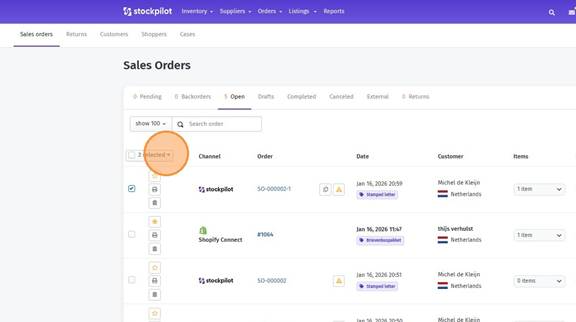
- Select your order(s) or all open orders on the page.
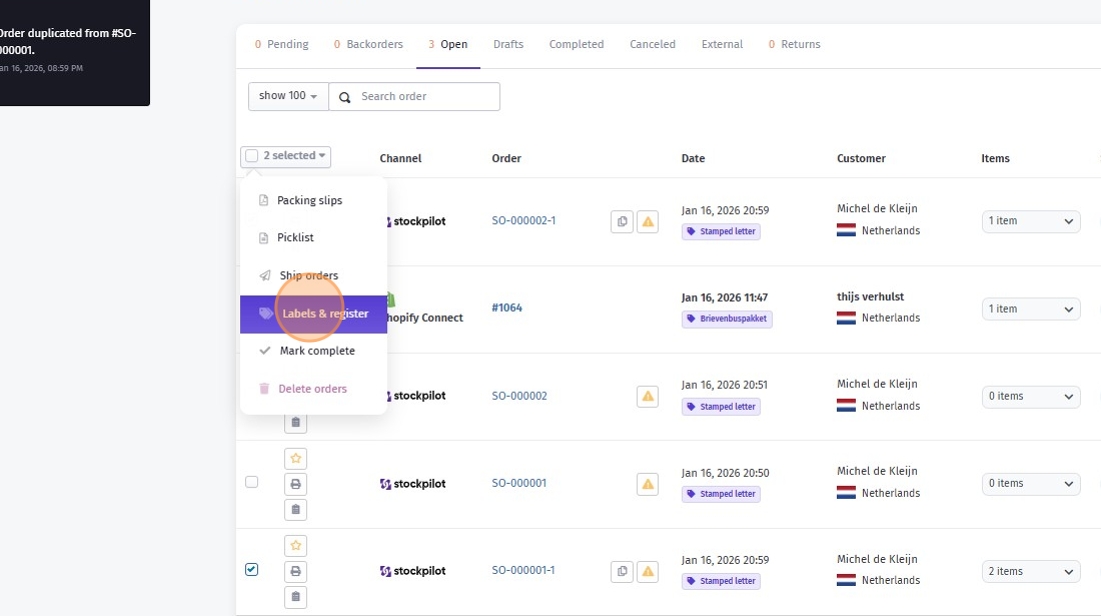
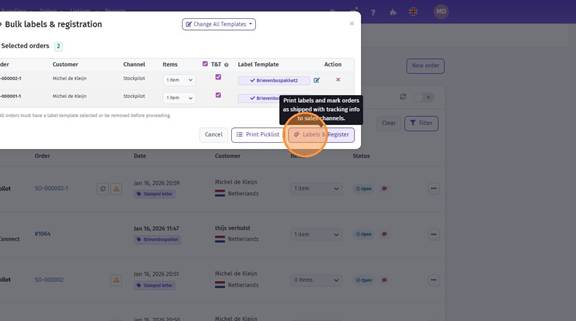
- Choose “Labels & Register” to instantly generate and print your pre-assigned labels and register your orders on the sales channels.
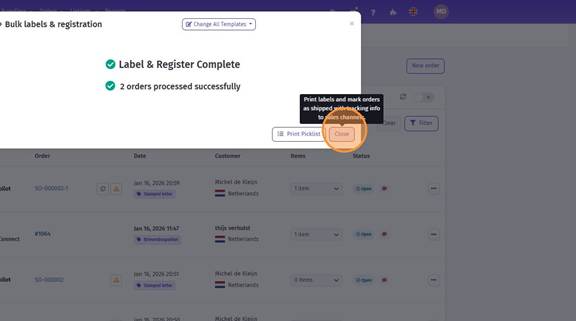
- Close the confirmation: your labels have now been created for each order, and the orders are marked as completed in your sales channels.
Within the 1-Click module, you also have manual options to adjust label templates for a specific order or for all orders, view and verify items, print pick lists, and choose whether or not to include tracking information when processing orders.
Below, you’ll find all these settings.
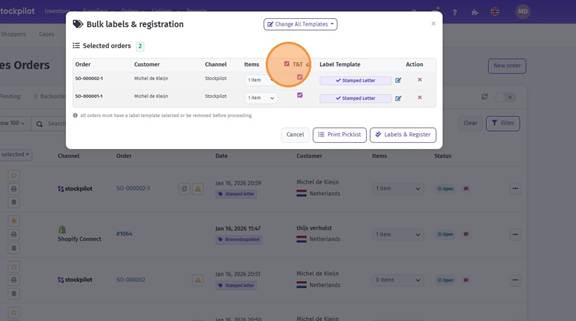
- Click this checkbox if you would like to process the tracking in the completed order information.
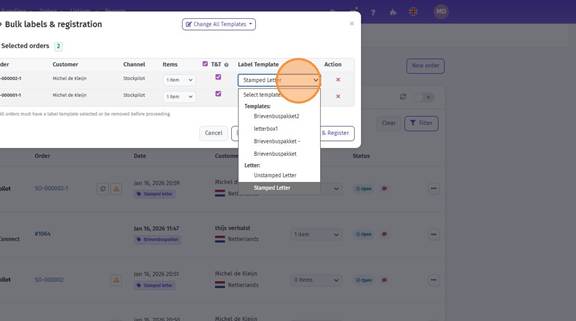
- Click the pencil icon next to the label and select a different label template for this order from the dropdown.
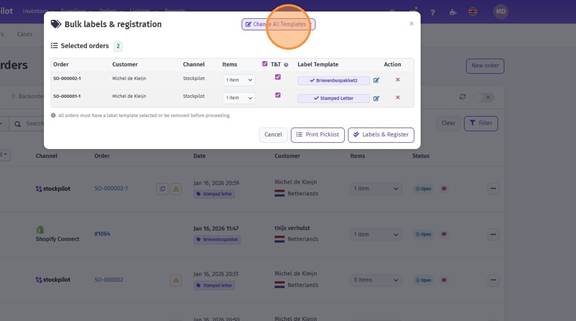
- Click “Change All Templates” to change the label templates for all orders.
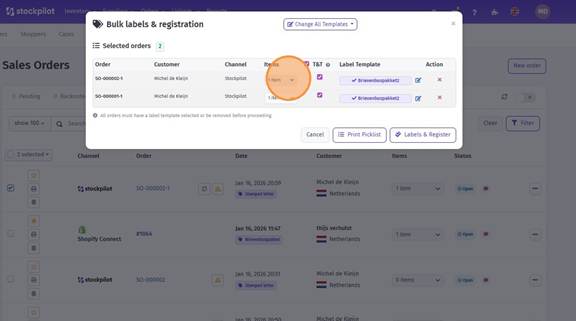
- Click this dropdown to view the ordered item(s).
With the Stockpilot 1-Click module, you can process multiple orders in one action and generate all shipping labels instantly. This allows you to ship orders faster, with fewer manual steps and minimal risk of errors.
I hope this article has been helpful. If you have any questions, please feel free to contact us via chat, email, or phone. We’re happy to assist you!
Was this article helpful?
That’s Great!
Thank you for your feedback
Sorry! We couldn't be helpful
Thank you for your feedback
Feedback sent
We appreciate your effort and will try to fix the article