With labeltemplates, you can save predefined carrier labels and use them within the Stockpilot shipping order processes. This makes the shipping process faster and more consistent, and allows you to automatically apply label templates to orders using our shipping rules.
In the walkthrough , we showed you how to create labeltemplates in Stockpilot.
It’s recommended to give each template a clear name, such as Letterbox parcel NL, Parcel Belgium or International letterbox parcel, so they are easy to recognize later.
Once saved, the template can be used when creating a shipment manually, or applied automatically through shipping rules *Link).
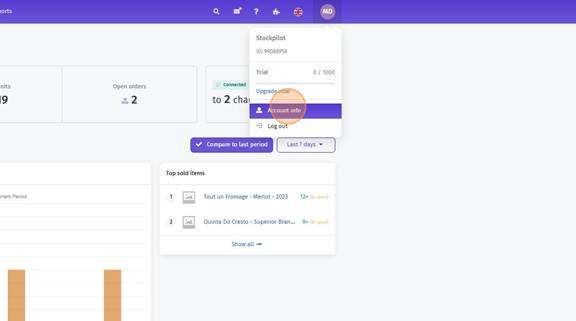
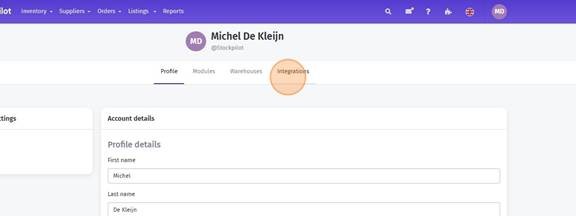
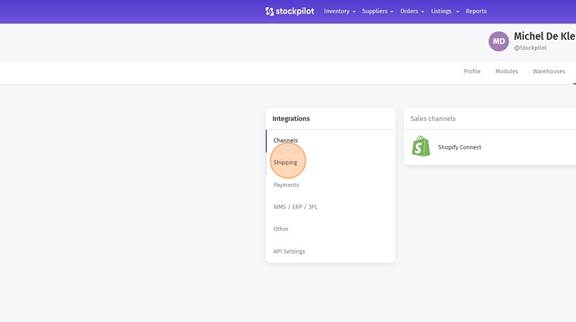
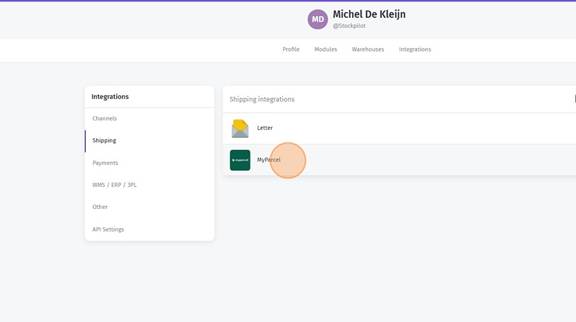
Here you can find each step to create your first labeltemplate as shown in the walktrough above.
- Click "Account info"
- Click "Integrations"
- Click "Shipping"
- Choose your carrier - If you haven’t integrated a carrier yet, discover how to set up your carrier integration here:
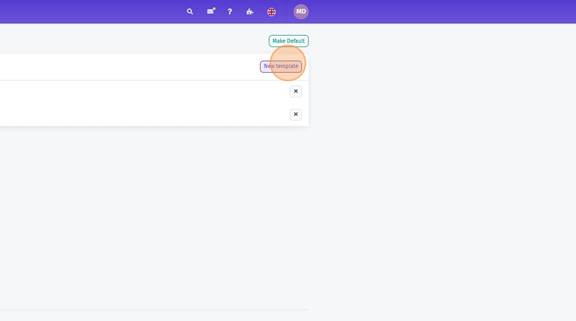
- Click "New template"
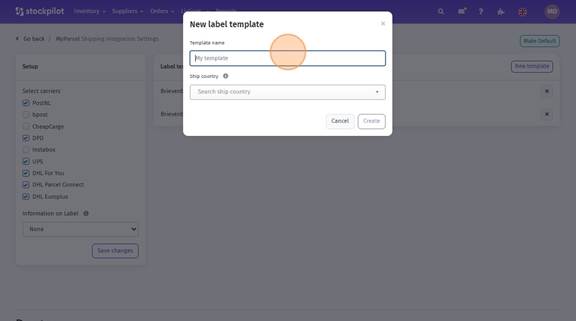
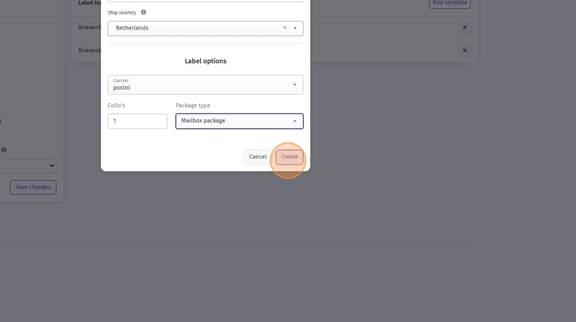
- Name your template and Select the shipping country
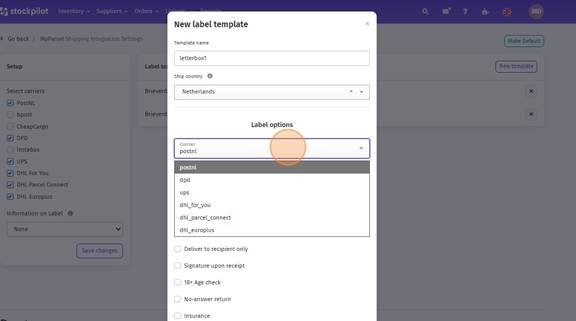
- Select your carrier
- Select your parcel.
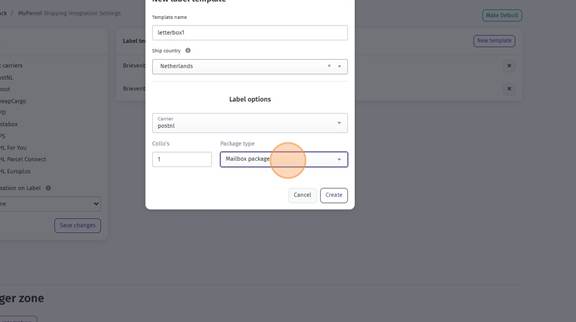
- Click "Create"
By linking label templates to your shipping rules, you can automatically apply the correct carrier, service, and label configuration per order, allowing you to print all your shipping labels for all orders with just one click.
- Learn more about automating your shipments with Shipping Rules
- Discover how to configure and manage Shipping Methods
- Discover how to print labels in Bulk with just One click.
This setup helps you streamline fulfillment, reduce manual steps, and ensure a consistent shipping experience for every order.
I hope this article has been helpful. If you have any questions, please feel free to contact us via chat, email, or phone. We’re happy to assist you!
Was this article helpful?
That’s Great!
Thank you for your feedback
Sorry! We couldn't be helpful
Thank you for your feedback
Feedback sent
We appreciate your effort and will try to fix the article