With Stockpilot Shipping Rules, the correct label template is automatically selected for each order based on predefined conditions. This streamlines the shipping process, reduces manual steps, and ensures a consistent and correct shipping setup for every order.
In this walkthrough, we show how to create and manage Shipping Rules in Stockpilot to fully automate your shipping workflow.
Here you can find each step to create your first shipping rule:
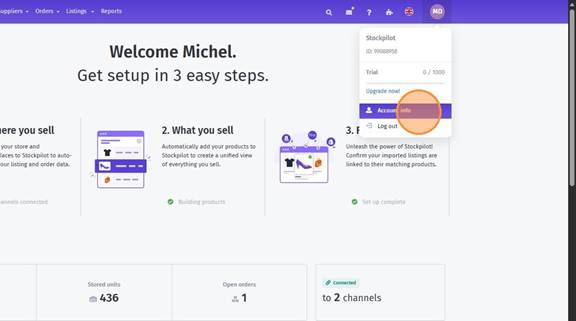
- Click "Account info"
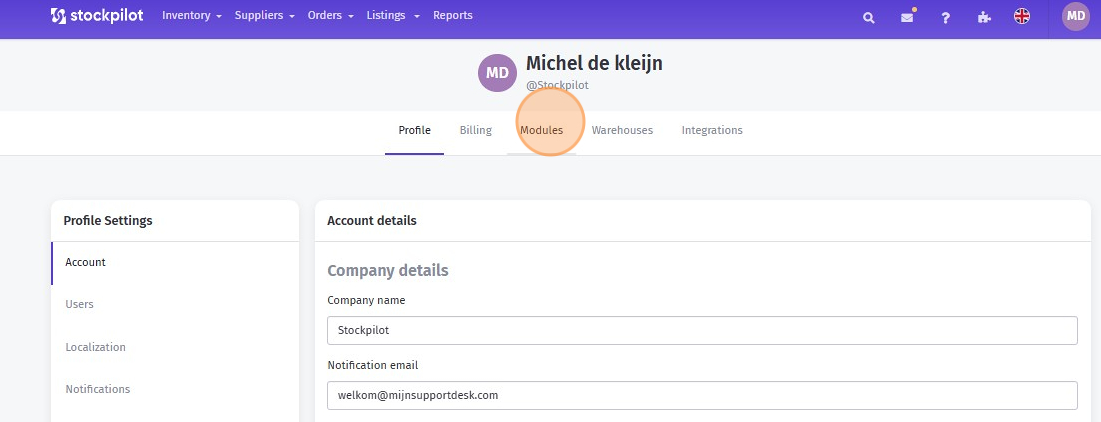
- Click "Modules"
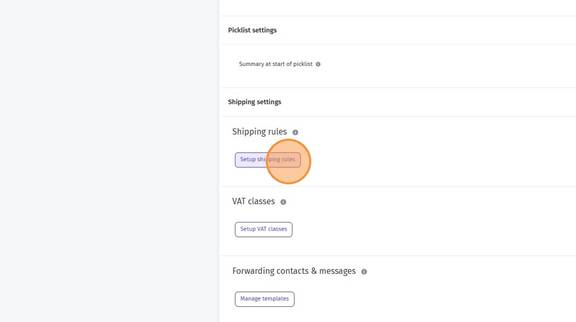
- Click "Setup shipping rules"
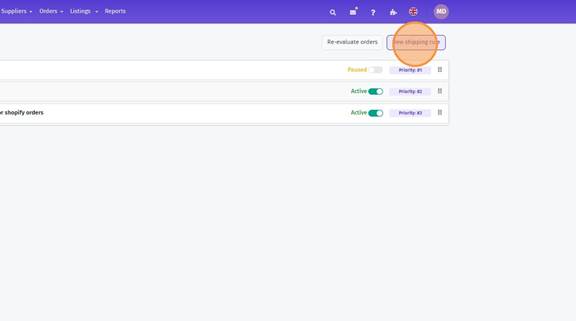
- Click "New shipping rule"
- Choose a name for your shipping rule - In our example: "Set labeltemplate to letterbox for Shopify orders"
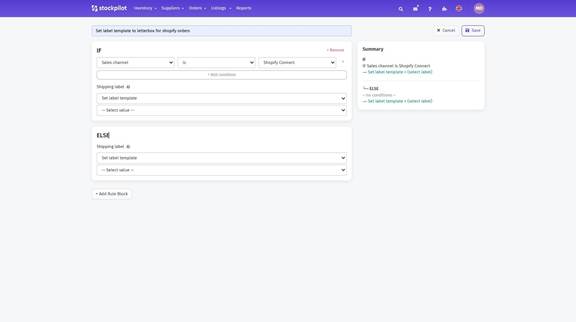
- Configure your Shipping rule - Set the conditions that determine when this rule should be applied, such as order destination, carrier, package type, or other criteria.
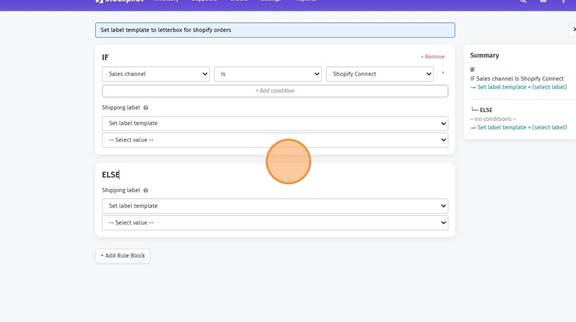
- Select a label template. Click here to create your first label template, If you haven’t set up a label template yet:
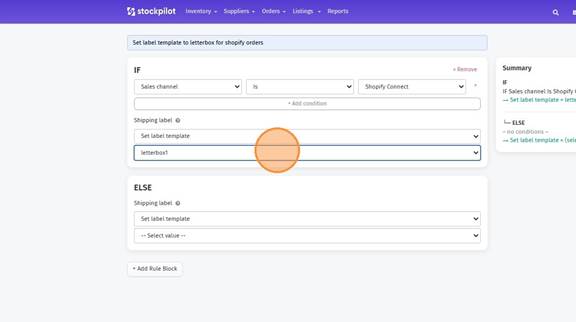
- Choose the appropriate label type for an Else scenario - this label template will be used when none of the defined conditions apply.
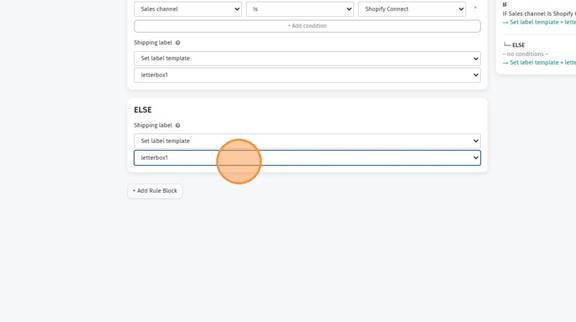
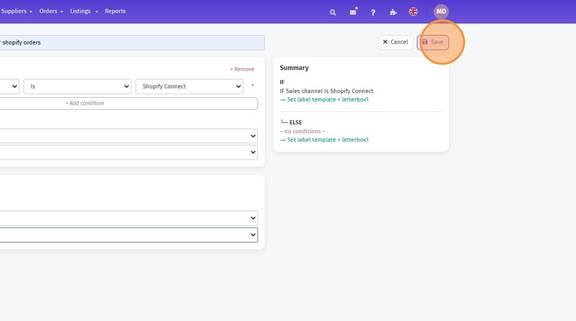
- Click "Save"
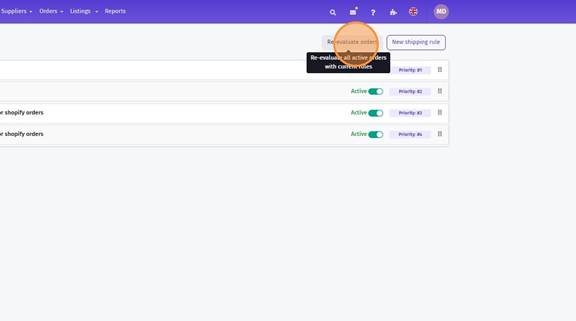
- Clicking “Re-evaluate orders” applies any new shipping rules to your existing orders, ensuring the correct labels are assigned automatically.
- Learn more about creating and managing Label templates
- Discover how to print labels in Bulk with just One click.
I hope this article has been helpful. If you have any questions, please feel free to contact us via chat, email, or phone. We’re happy to assist you!
Was this article helpful?
That’s Great!
Thank you for your feedback
Sorry! We couldn't be helpful
Thank you for your feedback
Feedback sent
We appreciate your effort and will try to fix the article