With the 3-step order processing module in Stockpilot, you can process multiple orders at once and prepare them for shipment efficiently. This reduces manual work and helps ensure every order is shipped correctly.
In this walkthrough, we show how to process orders using the 3-step method.
To get started, go to Orders and select the open orders you want to process. You can print packing slips or picklists, select a carrier, and choose a label template manually, or use Label templates and Shipping Rules to apply these automatically based on your predefined conditions.
Here you can find each step to process your first orders using the 3-step workflow.
- Select your order(s) or all open orders on the page.


- Select your shipping carrier and, if applicable, choose your packaging material.
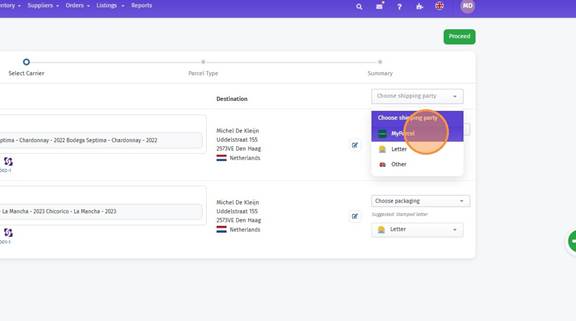
- Select your label template or choose manual configuration (see next step).
Click here to create your first label template, If you haven’t set up a label template yet:
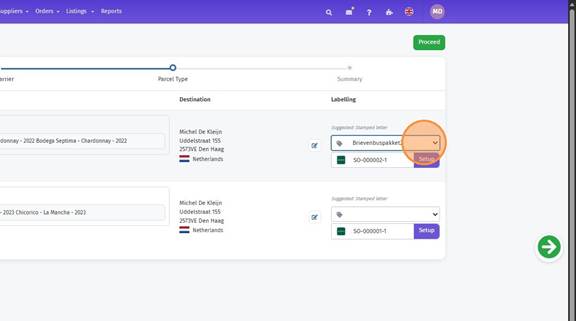
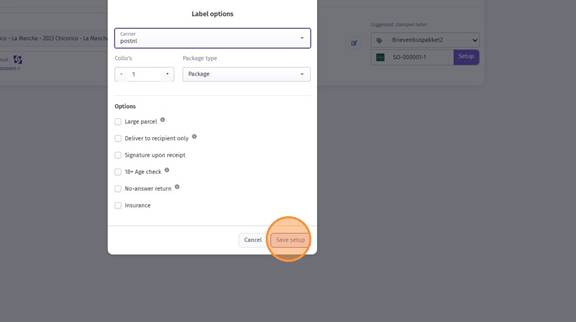
- Click "Setup"
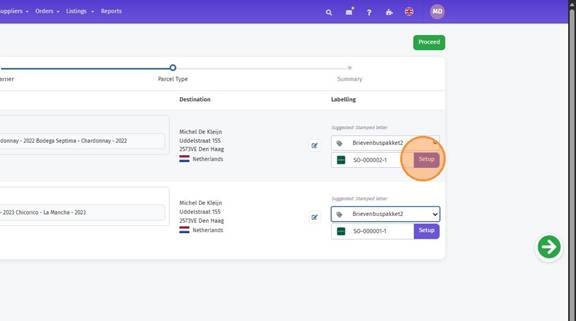
- Manual selection: choose the package type.
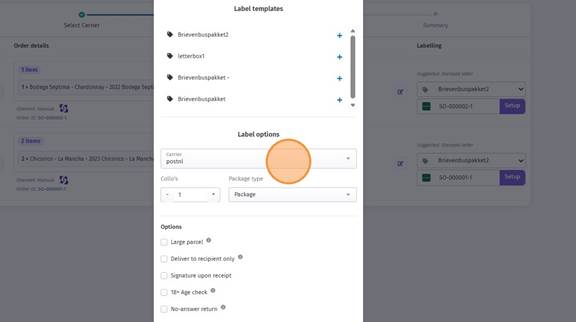
- Click "Save Setup"
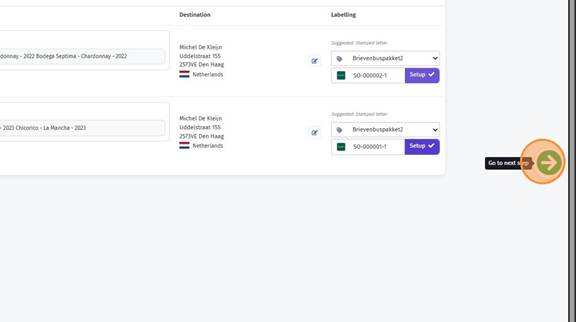
- Click the arrow and proceed to the final step.
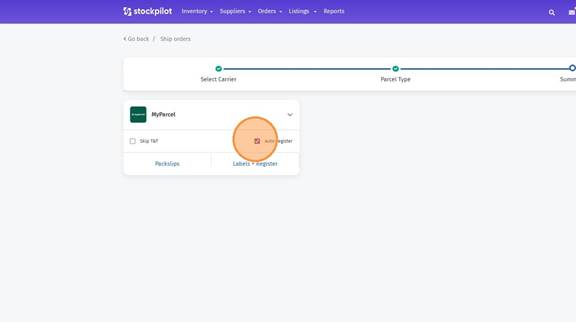
- Select automatic processing to process orders in the sales channel immediately when printing the label via “Labels + Register.”
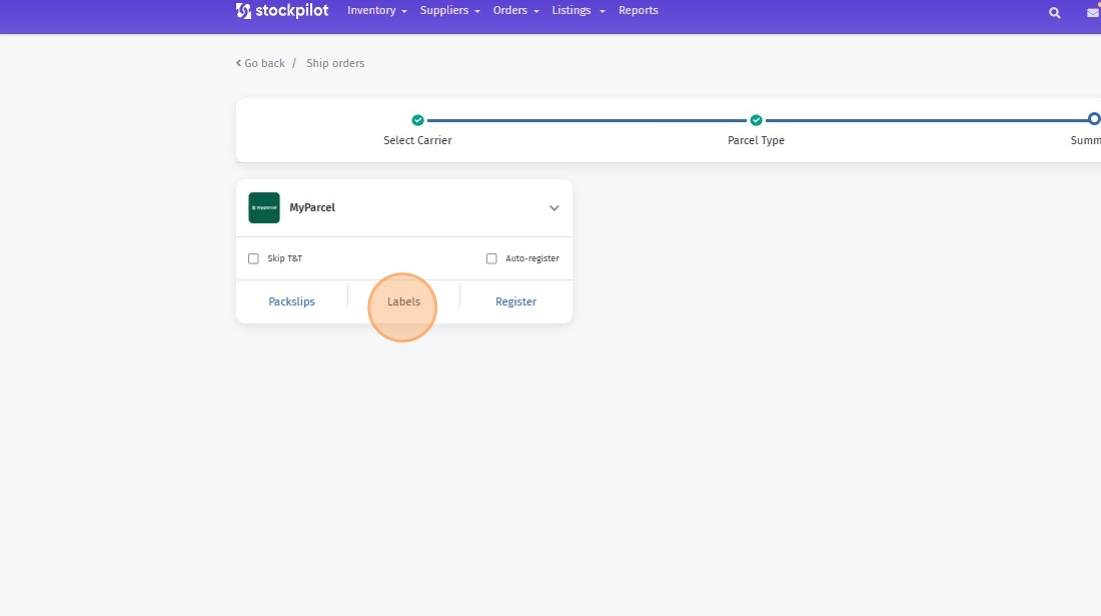
- If you do not select automatic processing, you first choose Labels and then Process. These are two separate steps.
- Learn more about creating and managing Label templates
- Learn more about creating and managing Shipping Rules
- Discover how to print labels in Bulk with just One click.
I hope this article has been helpful. If you have any questions, please feel free to contact us via chat, email, or phone. We’re happy to assist you!
Was this article helpful?
That’s Great!
Thank you for your feedback
Sorry! We couldn't be helpful
Thank you for your feedback
Feedback sent
We appreciate your effort and will try to fix the article